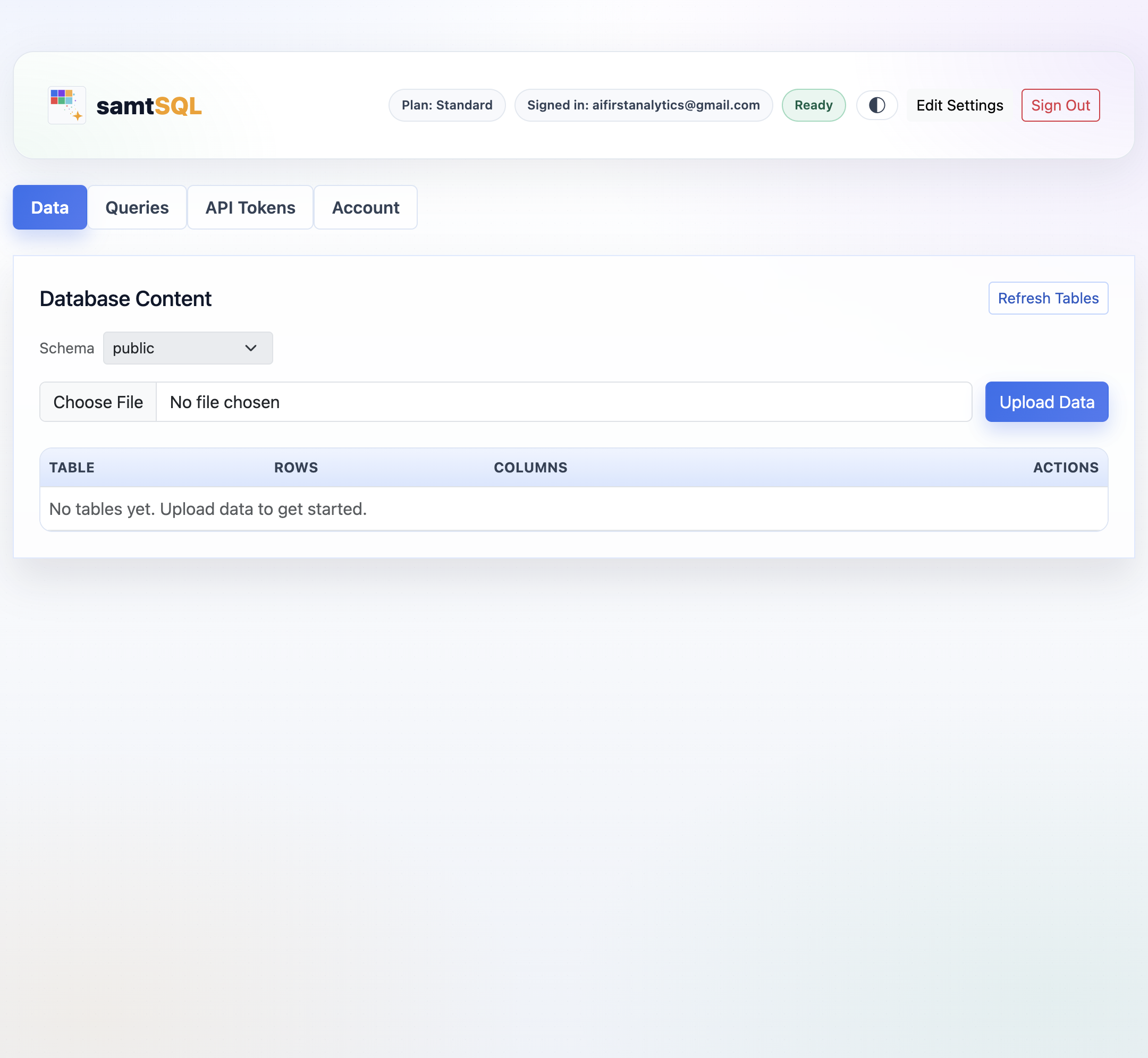
Visual Interface: Data
Click on the Data tab to inspect, manage, and upload data in the user database.
Inspecting data
Click on Schema to choose the database schema to view. For the chosen schema, samtSQL shows an overview of all available tables in the lower part of the Data view. For each table, samtSQL shows the name, the number of rows, and the number of columns.
SamtSQL periodically refreshes the data view. Clicking on the Refresh Tables button triggers an immediate refresh.
To obtain more details on specific tables, click on the Show Details button. For the selected table, samtSQL shows additional details such as:
- The names and types of all columns in that table.
- A data sample containing the first few rows.
Click on Hide Details to hide those details again.
Deleting data
To drop a table, click on the Drop button next to it. SamtSQL displays a confirmation dialog before deleting the table.
Uploading data
Click on the Upload Data button to upload new files to your PostgreSQL interface. In many cases, it is not necessary to upload data via the samtSQL interface. All data uploaded to your PostgreSQL database via other means will appear in samtSQL as well. However, multimodal data is not supported by standard PostgreSQL and encoded in a samtSQL-specific format. Therefore, multimodal data such as images or sound files must be uploaded via the samtSQL interface.
The samtSQL interface supports uploading two types of files:
- CSV files
- ZIP files containing multimodal data files
SamtSQL transforms each uploaded file into a table. For more details on supported file types and on the structure of the resulting tables, see here.